Scapy - Setting up a development environment for OPC UA & MOTRA
A really short primer on how to setup a development environment for Scapy & MOTRA.
When working with Scapy there are a number of ways to add functionality to existing tools or scripts. Scapy itself can be extended by adding some custom classes and scripts can be extended by creating Scapy specific add-ons. The first and probably most simple example is mentioned in the documentation here. Extending Scapy using add-ons is done using the builtin interact() and loading custom classes into the interactive console. The next option is to either build a customized release for Scapy or use some Python package management to run a development setup.
In my case, i chose a simple environment using poetry, since this supports most setups i currently use and can be configured to run local and remote development sources for building container images. The basic code/repository structure for development and release builds have been configured using the examples from CodeBerg1 and Reddit2. This allows for reloading changes on sources that are under active development and creates wrapper scripts that can be called from the command line with very little effort.
Using Editable Installs
Checkout Development Mode and Editable installs by CodeBerg here.
The solution is the Development Mode also known as editable install (PEP660). The package in development is kind of installed. The Python interpreter see the package as it was installed. But because of symlinks used in that special mode the source files in the git repository are used. This also means that each modification on the source has an immediate effect on the package available to the system. To install a package in Development Mode
pip’s option-eor--editableis used.
We need to adapt this for poetry to run and change our sources while working on a fork of SCAPY to get a suitable development environment. The current configuration is hosted here, providing the setup tools for Scapy and some scripts to run against OPC UA services. Using poetry install, we can update the local settings and run our commands either in interactive mode from the Scapy interpreter or just the command line.
The magic happens inside the project configuration like this:
1
2
[tool.poetry.dependencies]
scapy = {path = "src/scapy",develop = true}
The default setup using setuptools and pyproject.toml
Python will either look for a project file (pyproject.toml) or configuration used by setuptools. The most basic setup for working with development sources and having some interactive scripts at hand, to be used on the command line, would look like this:
1
2
3
4
5
6
7
8
9
10
11
12
13
14
15
16
17
18
19
20
21
22
23
24
25
26
27
28
29
30
[project]
name = "workspace"
version = "0.1.0"
description = "..."
authors = []
license = {text = "MIT"}
readme = "README.md"
requires-python = ">=3.11, <4"
dependencies = [
    "scapy @ file:///home/.../scapyWorkspace/src/scapy",
    "cryptography (>=45.0.6,<46.0.0)",
    "pyx (>=0.16,<0.17)",
    "matplotlib (>=3.10.5,<4.0.0)",
    "pytest (>=8.4.1,<9.0.0)",
    "ipython (>=9.4.0,<10.0.0)"
]

[project.scripts]
my_nice_script = "...:main"

[build-system]
requires = ["poetry-core>=2.0.0,<3.0.0"]
build-backend = "poetry.core.masonry.api"

[tool.setuptools.package-dir]
workspace = 'src/workspace'
scapy = 'src/scapy'

[tool.poetry.dependencies]
scapy = {path = "src/scapy",develop = true}
Things to note: [tools.setuptools.package-dir] points to the location of the package files, required to build the wheel. The lines below [project.scripts] are equally important, as these create executables of that package. Each script gets a custom wrapper for the entry point on the right hand side of the configuration of each line. Poetry adds some custom fields and identifiers to execute the build and dependency resolution process. Apart from this other tools like pipx and setuptoos should be able to parse the configuration file and create a usable development or release version of the workspace.
When running poetry add, we can also specify the --editable flag to include local or remote sources for package development. In this case i chose to include the fork of Scapy as a local resource, by passing in a folder. Question remains, if we need to add a remote URL as a package or rather a submodule with our fork when extending the base framework. So far using a submodule to track the fork locally has been working great for development.
Create a new fork for SCAPY
If we want to create some changes to the existing code base of Scapy, we could create a local clone or a git subodule to handle our changes. But if we need to do more stuff on different versions of the stack or if we need to include code for testing, it would be a sensible choice to create a fork and have the upstream project linked to our changes for the mean time. This step should be easy, just run everything on GitHub. We need to setup and link the correct packages and entrypoints to setuptools.3
Integration into a new workspace should look like this:
1
2
3
4
5
6
7
8
9
10
11
12
13
14
15
my_dev_workspace/
├── LICENSE
├── pyproject.toml
├── README.md
├── src
│   ├── my_multi_module_lib1/
│   ├── SCAPY/
│	  │   └── ...
│	  ├── my_app/
│       ├── main.py
│       ├── tests/
│       ├── requirements.txt
│       └── ...
└── tests
    └── test_dummy.py
For getting the VS Code Linter to properly work, we can add this to our local configuration.
1
2
3
"python.analysis.extraPaths": [
        "./src/scapy"
    ]
Using this development setup we can create custom scripts, which can wrap the development sources using the [project.scripts] key in the project file. Each entry will create a new script in the inside the cache dir of poetry or if we create a release inside the wheel and look like this:
1
2
3
4
5
6
7
# [...]/workspace-VY2LqEwF-py3.11/bin/clhello
#!/home/las3/.cache/pypoetry/virtualenvs/workspace-VY2LqEwF-py3.11/bin/python
import sys
from workspace.testing_client_hello import main

if __name__ == '__main__':
    sys.exit(main())
Each script entry will be parsed into a wrapper for the development setup to be used in the poetry environment as a command line tool later on. For testing we can create different scripts to test the main functionalities for different protocol decoders or if we want to test sessions for different servers.
Getting OPC UA pcap Samples to build the Decoders
The current plan is to build a set of OPC samples to be parsed into python code to get some tests on the decoders for Scapy running. We start with the diagnostic data, since this should be the most basic endpoint on the OPC UA server to test and work our way up the protocol stack from there. First we should get some Wireshark samples to check how things work and how the servers for OPC UA are interacting.
The logical initial step for building a new protocol layer with SCAPY would be to start with a diagnostic request to a single server and then try to capture a simple handshake without any security enabled. This should allow us to get very similar interactions of multiple server implementations with our current testing setup.
Speaking of testing client and server, we need to setup and configure our OPC UA endpoints before we can generate any usefull data. For testing we will be using the containerized MOTRA testbed. For the attacker we will be using motra-playbook4 with: docker run -it motra-play:latest which will be running the testing framework from claroty/team825. Their work also covers a great writeup on OPC UA, tools and research on finding new vulnerabilities6 and how they built the network fuzzer for OPC UA devices7. For the servers we will be using the default server images from motra-images and motra-setups with a default configuration for the information models and the default security settings:
1
2
3
4
[...]/server/c-open62541/latest $ ./docker-build.sh && ./docker-run.sh
[...]/server/dotnet-NETStandard/latest $ ./docker-build.sh && ./docker-run.sh
[...]/server/nodejs-node-opcua/latest $ ./docker-build.sh && ./docker-run.sh
[...]/server/python-opcua-asyncio/latest $ ./docker-build.sh && ./docker-run.sh
We will run each server using the default port of 4840 once, start the client from Claroty with the sanity payload and run a single test with each server. In addition we will be setting up a tcpdump session inside another terminal to capture all the data we need live. Using the framework we just need to activate the python environment and run the default configuration like this:
1
2
3
4
/opt/poetry/bin/poetry install --no-root
eval $(/opt/poetry/bin/poetry env activate)
# python3 main.py <serverType> <ip> <port> <opc-endpoint> <payload>
python3 main.py <serverType> <ip> 4840 / sanity
A typical interaction on the client side should look like this, without any errors from the server. This interaction requests the diagnostic endpoints from the server (dotnet in this instance) and closes the anonymous connection after the read operation.
1
2
3
4
5
6
7
8
9
10
11
12
13
14
15
16
17
18
(claroty-py3.11) motra@529a1ee97db2:
> ~/.../claroty-framework$ python3 main.py dotnetstd 172.17.0.2 4840 / sanity
**** Started at 2025-08-26 12:26:20.996298 ****
[-] Opening connection to 172.17.0.2:4840 (timeout: 60)
[-] Opening OPC UA session with opc.tcp://172.17.0.2:4840/
[-] Sending HEL message with 58 bytes
        [-] Setting OPN ReqLifetime to 360000
[-] Sending OPN message with 133 bytes
        [-] Got Secure Channel Id = 1
[-] Sending Create message with 358 bytes
        [-] Got AuthID = d15a1991d896cf91f4986b1264d72d6a
[-] Sending Activate message with 125 bytes
[-] Sending MSG Request - Read Array of 12 NodeIDs x 1 times
[-] Closing connection
[-] Sending MSG Request - Close Session
[-] Sending CLO Request
[-] Closing connection
**** Ended at 2025-08-26 12:26:21.042996 (took 0.05 seconds) ****
Capture packets using tshark and tcpdump
The default containers are usually attached to a custom bridge or the default network bridge between the host and the docker interfaces. If we check our main containers we will see that both are part of the docker0 network:
1
2
3
4
5
6
7
8
9
10
las3@bitsfrozen:~ $ docker inspect ServerContainer
    [...]
	"NetworkSettings": {
		"Bridge": "",
		"Ports": {
			"4840/tcp": [...]
		},
		[...]
		"Gateway": "172.17.0.1",
		"IPAddress": "172.17.0.2",
The view from within the MOTRA-Playbook container:
1
2
3
4
5
6
# ping from attacker to the OPC UA server
las3@bitsfrozen:~ $ docker run -it motra-play:latest
motra@b8b8aed8b7dd:~/motra$ ping 172.17.0.2 # this will be the server
PING 172.17.0.2 (172.17.0.2) 56(84) bytes of data.
64 bytes from 172.17.0.2: icmp_seq=1 ttl=64 time=0.079 ms
64 bytes from 172.17.0.2: icmp_seq=2 ttl=64 time=0.055 ms
The local network configuration from our docker host:
1
2
3
4
5
6
# default docker interface on the main host
las3@bitsfrozen:~ $ ip a
[...]
5: docker0: <BROADCAST,MULTICAST,UP,LOWER_UP> mtu 1500 qdisc noqueue state UP group default
    link/ether 12:34:45:56:67:78 brd ff:ff:ff:ff:ff:ff
    inet 172.17.0.1/16 brd 172.17.255.255 scope global docker0
If we start with our default C-Server (open62541), we can see a full handshake for the diagnostic read function and some error conditions for the server. The error in this case is related to the default configuration of the server, since we do not publish diagnostic data without a valid initial session. Depending on the server configuration this can happen with other servers too. Usually the servers should provide a public endpoint, to allow external clients to get a suitable endpoint configuration to connect over a secure channel.
We will be repeating these steps for all of our main server types from the testbed (python, nodejs, dotnet, C/C++). Captures are done with tshark and tcpdump. The pcaps and the final archive for git are collected in a separate folder for later use. We will use Wireshark or tshark to get the OPC UA payload and create templates for our decoders later on.
1
2
3
4
5
6
7
8
meta/
└── diagnostic-pcaps
	├── <client>-<server>.tar.gz
    ├── claroty-dotnetstd.pcap
    ├── claroty-nodejs.pcap
    ├── claroty-open62541-enabled.pcap
    ├── claroty-open62541.pcap
    └── claroty-python.pcap
We can capture different client server interactions using tshark or tcpdump. Using both of these tools we can just use the command line and don’t need to add any external cabling and taps to the setup (which is great when working off a Raspberry Pi remotely). To create a new capture we run tcpdump -w <source>-<target>.pcap port 4840 -i 3 with -i 3 beeing the local ID for the generic docker interface. When setting this up, either use the docker interface or the specific veth to the bridge you are connecting to. Otherwise there will be duplicated packets from routing through the different interfaces on your host. If we try to capture on all other interfaces (which should be -i 6 in this case) we can see duplications from internal routing using the main bridge interface. Last time we tested this, we used to send the initial requests to the external IP of the host. This caused duplication and other issues with the capture file, since there will be additional markers for Linux internal routing present. For a less obstrusive capture between client and server we will be focusing on the docker internal IP range for these measurements. To check and read a single file on the command line use tshark -r claroty-dotnetstd.pcap. This will display the handshake and some high level information from the OPC UA protocol used. If everything works, we should be able to see a full handshake, a public session and a DiagnosticRead frame.
Building stuff with SCAPY
In order to get the decoders to work with OPC UA we need to setup a suitable environment for SCAPY to test the different packages on the fly. First we need to get some captured packets into our python environment to continue.
Setting up examples for the decoders
We could try to load each pcap we captured earlier to start working on the live data, but handling raw bytes for a start should be easier and faster. In case we wanted to prepare some tests, we can use the data to generate packet headers, payload or specific data structures from the exported data. First we will analyze the captures using Wireshark, since the decoders for OPC UA are a great reference for reverse engineering.
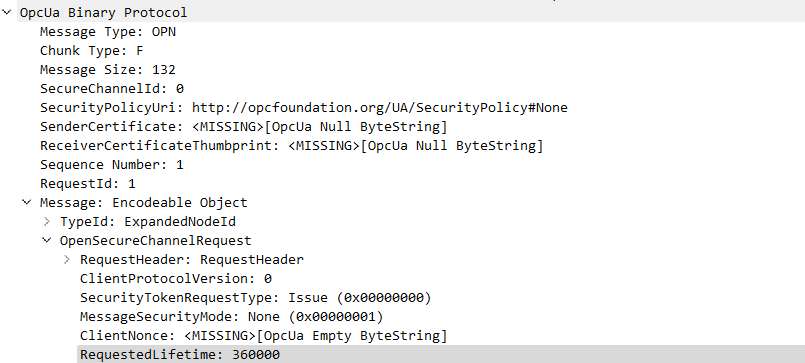 Here we can see the second step of a OPC UA handshake between a client and a server. The initial part of the message contains the message type and other metadata for the transport protocol. The message payload contains the Prefix, the Requestheader and the OpenSecureChannel-Request payload required to initialize a new session.
As the OPC Binary Transport setting is usually the default for most setups and uses TCP for managing transport over the network this is the best option to build a dissector with SCAPY as a starting point. As we can see from the capture we usually have two parts to a single message. We have the main binary protocol sitting on top of TCP and we have Encodable Objects, which hold the actual data that is requested or that has been requested earlier from an OPC server. Reason being OPC does add its own encoding and session layer on top of or rather as part of the protocol. So we have a custom transport layer on top of TCP in addition to a session and security layer (which we will ignore for now).
How each layer intergrates into the OPC UA environment, how security is affected and how each layer affects different types of sessions is another discussion for a later time. Since we have multiple layers we need to be aware of, we will only focus on the most basic of all. Which would be OPC Binary over TCP using no Encryption.
The security layer uses encryption and/or signatures to add protection to the data on the wire. However, these layers are very complex, may have some overlap and create mappings between different layers of the protocol, information models and implementations. Therefore these are too complex to handle from the start.
To be able to use the gathered data from earlier we use the copy function of Wireshark to create hex-coded streams of each respective Ethernet frame and load these into a python file. We can use some formatting to clean things up, but this way we have a set of Ethernet frames we can pass into a custom dissector. As the naming below implies, these are sorted by server and message type, so we can build the different parts of the binary protocol in steps.
1
2
3
4
5
6
7
8
9
10
11
12
open62541_client_hello = bytes.fromhex(
    "da9c8d0f1fc45afb56217e4908004500006ea8754000400639edac110003ac1100028f0"
    "a12e8b5b75ec36aaa645c801801f6588800000101080a7493cca485225b5448454c463a"
    "00000000000000ffff0000ffff000000000000000000001a0000006f70632e7463703a2"
    "f2f3137322e31372e302e323a343834302f"
)

open62541_client_hello_ack = bytes.fromhex(
    "5afb56217e49da9c8d0f1fc4080045000050fdd940004006e4a6ac110002ac11000312e"
    "88f0a6aaa645cb5b75efd801801fd586a00000101080a85225b557493cca441434b461c"
    "0000000000000000200000002000000020000000000000"
)
How the decoders work and how the different examples integrate into Scapy will be part of the next post.
References
Reddit - Learn Python - Making all you projects an (editable) installable package by default from the start. ↩︎
Playbook is currently private, but will be released soon ↩︎